Setup Restrict Multi Discount Codes — Shopify Plus checkout editor
Follow these steps once per store before customers see the limits at checkout.
Shopify Plus required. Checkout UI extensions and the checkout editor are only available on Shopify Plus. If your store is not on Plus, the app will not be compatible — see Troubleshooting.
1. Install the app
Section titled “1. Install the app”- Open the Shopify App Store listing and click Install.
- Complete the install flow in your Shopify admin. The app is $4 / month (USD) with a 3-day free trial.
2. Open the checkout editor
Section titled “2. Open the checkout editor”-
In admin, go to Settings → Checkout.
-
Click Customize to open the checkout editor.
-
Or use this pattern (replace
YOUR-STOREwith your.myshopify.comdomain):https://YOUR-STORE.myshopify.com/admin/settings/checkout/editor/?page=checkout&context=apps
3. Add the app blocks
Section titled “3. Add the app blocks”The app includes two checkout UI extensions. Add one or both depending on what you want to limit.
Restrict discount codes
Section titled “Restrict discount codes”- In the checkout editor, select the Discounts or reductions area (before discount codes are applied).
- Click Add app block and choose Restrict Multi Discount Codes (or restrict-discount-codes).
- In the block settings, set Maximum discount codes allowed (integer, default 1).
- Position the block where customers will see the reminder banner.
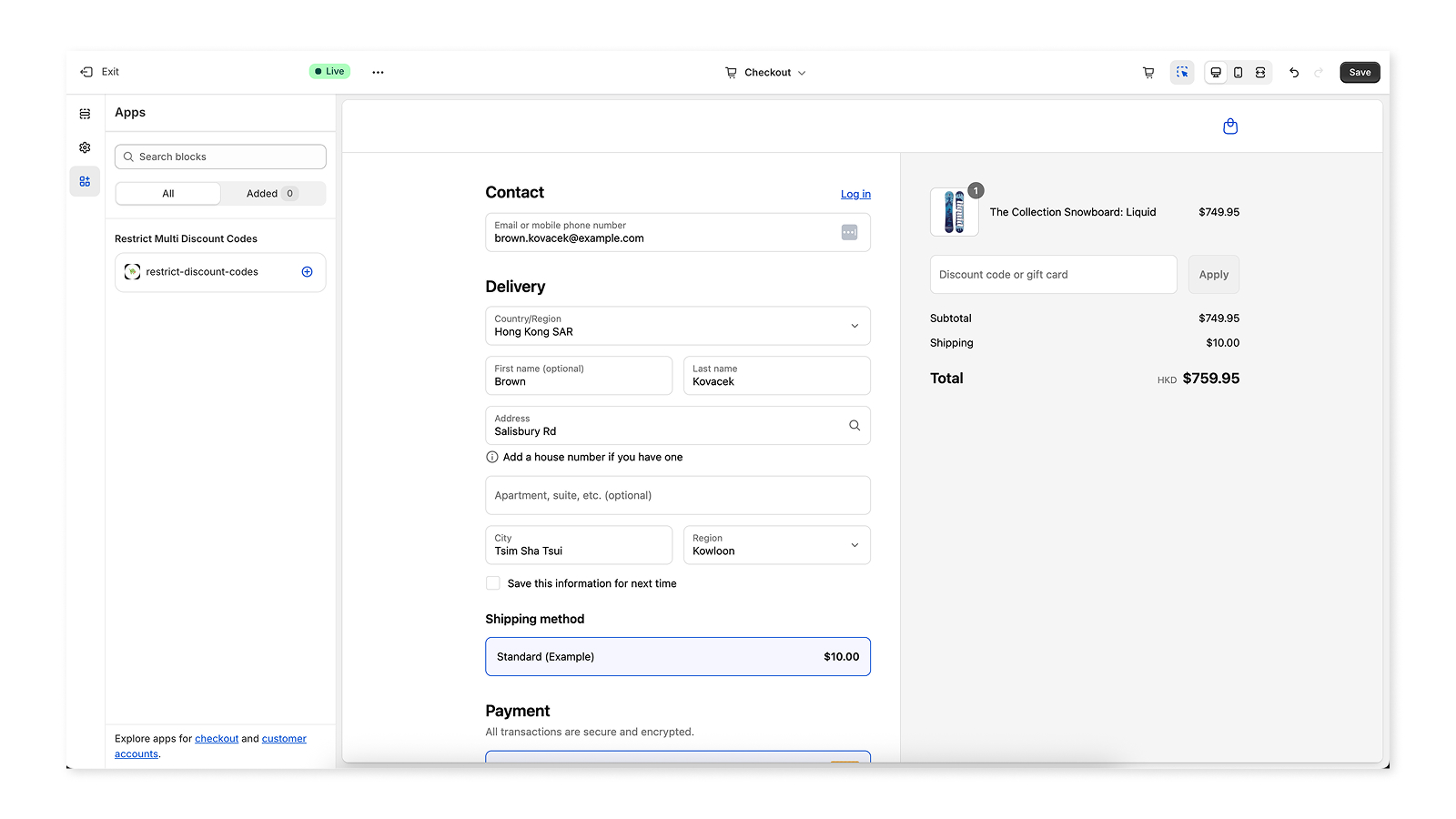
Restrict gift cards
Section titled “Restrict gift cards”- In the same reductions area, click Add app block and choose Restrict gift cards (or restrict-gift-cards).
- Set Maximum gift cards allowed (integer, default 1).
You can use both blocks on the same checkout page.
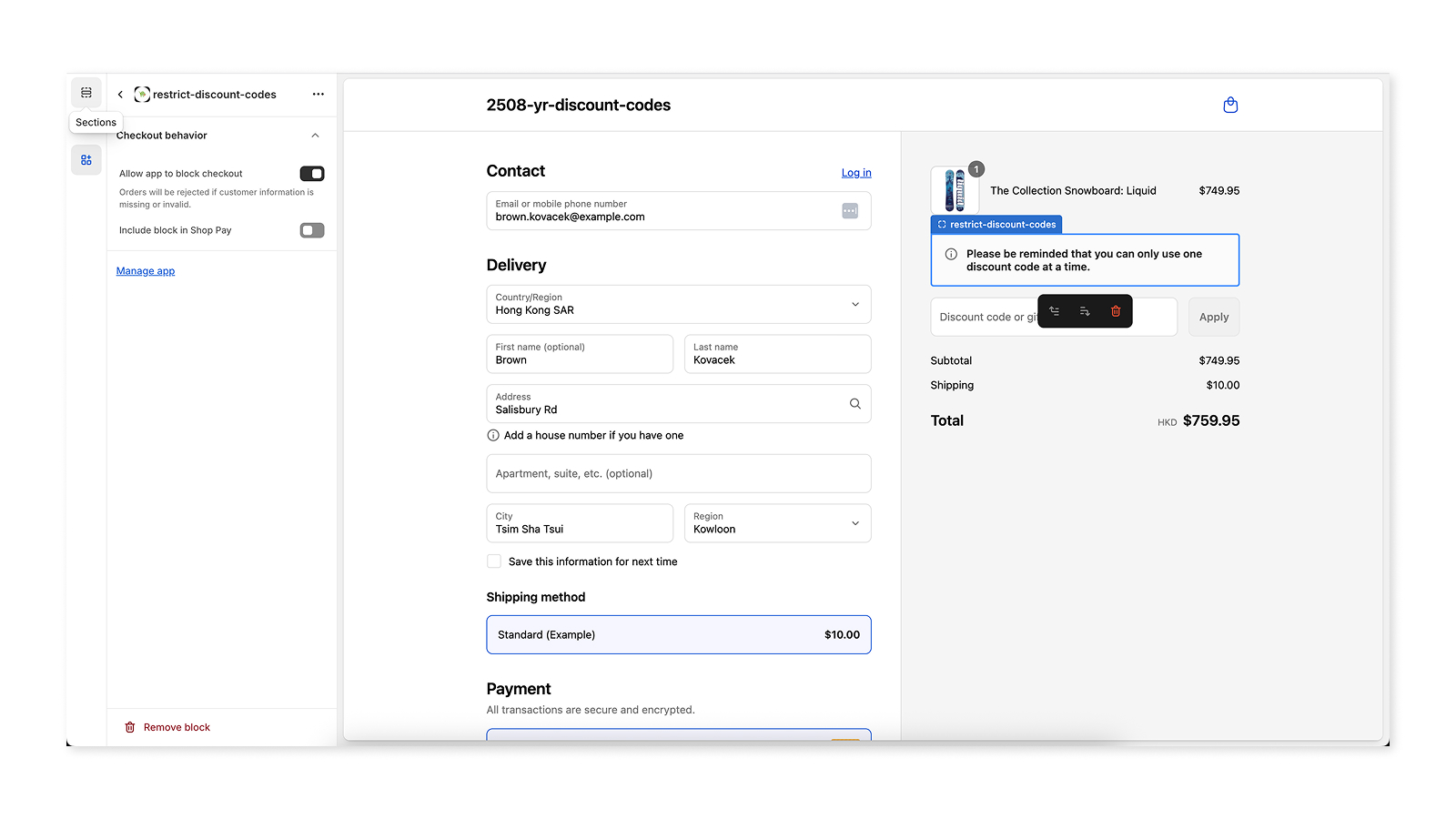
4. Save and publish
Section titled “4. Save and publish”- Review block settings for both extensions.
- Click Save in the checkout editor.
- Publish your checkout customizations when prompted.
Changes apply to your live checkout after publish.
5. Verify
Section titled “5. Verify”- Open your storefront checkout with a test product.
- Apply one discount code — you should see an informational reminder banner (if the block is visible).
- Apply a second code (when max is 1) — checkout should block with an error under the discount field.
See Troubleshooting if blocks do not appear.
Next steps
Section titled “Next steps”- Discount codes guide — how the limit behaves for customers
- Gift cards guide — gift card limit behavior
- Support — contact K2 Digital